85-001 error code
Server device-registration error
What does Samsung Samsung SmartTag and SmartThings Find 85-001 mean?
Samsung SmartTag error code 85-001 means An error occurred while registering the SmartTag with Samsung's server. This code applies to SmartTag onboarding, device communication or Samsung server registration rather than a general Galaxy phone hardware fault.
The code identifies the condition detected by the product; it does not always identify the failed component on its own. Confirm the full code and exact model before ordering parts or attempting a reset.
The Samsung Samsung SmartTag and SmartThings Find 85-001 error code indicates samsung SmartTag error code 85-001 means An error occurred while registering the SmartTag with Samsung's server. This code applies to SmartTag onboarding, device communication or Samsung server registration rather than a general Galaxy phone hardware fault. This guide explains what the code means, the symptoms and likely causes, the checks that are safe to make, and when to stop and arrange an authorised repair.
Symptoms you may notice
- SmartThings Find displays 85-001.
- SmartTag onboarding, registration or synchronisation does not complete.
- The tag may remain unavailable or undiscovered in SmartThings.
Common causes
- An error occurred while registering the SmartTag with Samsung's server.
- Bluetooth range, mobile-network availability or temporary Samsung server status may contribute.
- Some server-registration conditions require Samsung escalation.
Before you start troubleshooting
Use the display, rating label or product menu to confirm the exact model. Similar-looking codes can have different meanings across product generations and regions.
- Record the complete code, model number and what the product was doing.
- Follow only the external checks in the official instructions for the exact model.
- Stop if a check requires covers to be removed or exposes electrical or moving parts.
Troubleshooting steps
- 1. Record the complete code.
- 2. Move the Galaxy device closer to the SmartTag.
- 3. Confirm Bluetooth and internet connectivity.
- 4. Restart SmartThings and retry once.
- 5. Reset the SmartTag only when the official instructions for the model permit it.
- 6. Submit a Samsung Members error report if the code persists.
Can you fix this error code yourself?
The safest next step depends on the exact model and the cause behind the code. External checks may help, but a returning fault needs professional diagnosis.
A successful reset is not proof that the underlying issue is fixed. If 85-001 reappears, note when it happens and give that information to the service engineer.
Reset instructions
Close and reopen SmartThings, then retry onboarding once. Where Samsung instructs it for this code, reset the SmartTag and reconnect it. Do not repeatedly remove and re-add the device without recording the code.
Applicable products and models
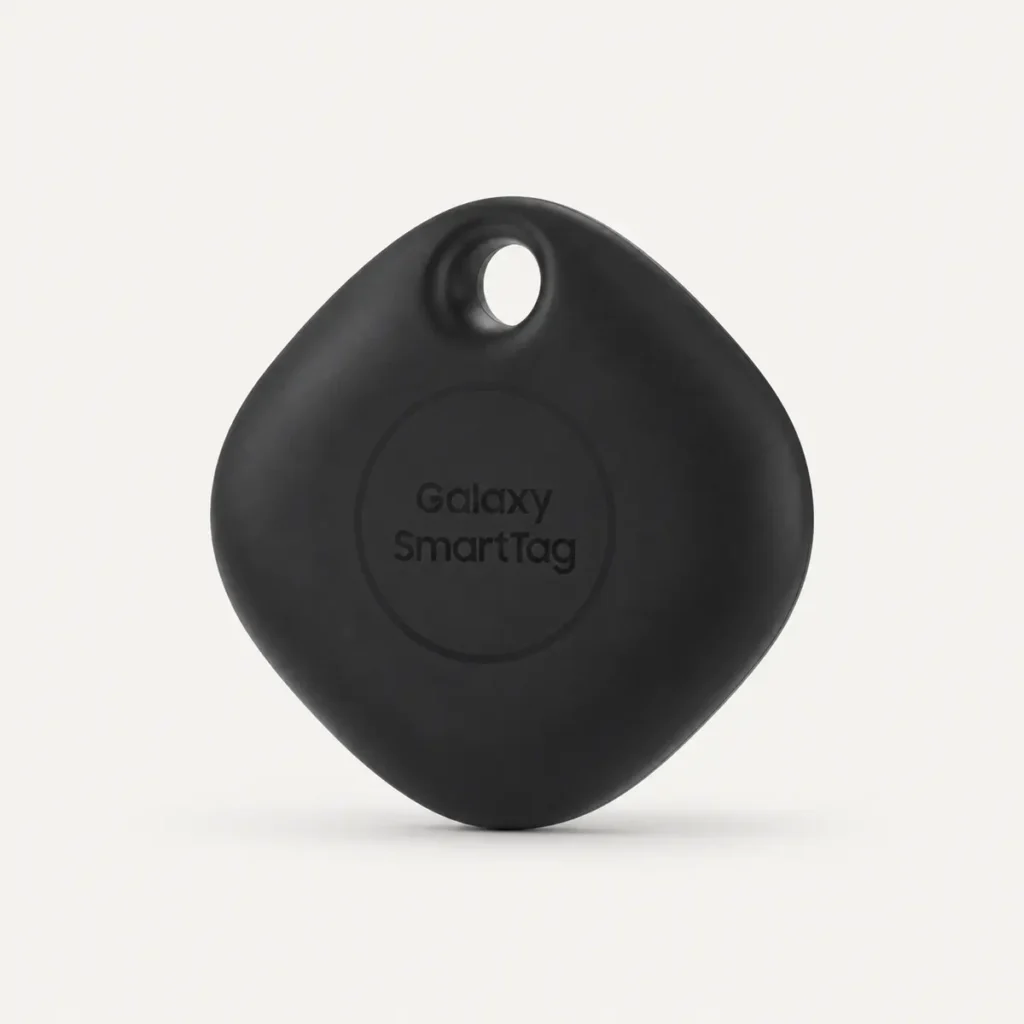 Samsung SmartTag and SmartThings FindSmartTag familyModel dependent
When to contact a professional
Contact Samsung Support when the code requires server-side registration, persists after the documented checks, or Samsung requests device logs, serial details or the packaging QR code.
Frequently asked questions
What does Samsung Samsung SmartTag and SmartThings Find 85-001 mean?
Samsung SmartTag error code 85-001 means An error occurred while registering the SmartTag with Samsung's server. This code applies to SmartTag onboarding, device communication or Samsung server registration rather than a general Galaxy phone hardware fault.
Can I fix Samsung Samsung SmartTag and SmartThings Find 85-001 myself?
Some external checks may be suitable for the user, but the result depends on the exact model and cause. Use the official manual and arrange service if the code returns.
Should I reset the product after code 85-001?
Close and reopen SmartThings, then retry onboarding once. Where Samsung instructs it for this code, reset the SmartTag and reconnect it. Do not repeatedly remove and re-add the device without recording the code.
When should I arrange a repair?
Contact Samsung Support when the code requires server-side registration, persists after the documented checks, or Samsung requests device logs, serial details or the packaging QR code.